• Link to Mail
  • Link to Facebook
  • Link to Instagram
  • Link to LinkedIn
Questions? Send us a message via live chat or our contact form.
Full Service Design Agency - Multimedia Design Agency
  • PORTFOLIO
    • Our Work
    • Our Clients
  •    MAILCHIMP
    • MAILCHIMP TEMPLATES
      • Compare Our Mailchimp Packages
      • Orangutag Mailchimp Package
        • PSD to Mailchimp Conversion
      • Mini Marmoset Mailchimp Package
        • up to 5 content variants/blocks
      • Curious Chimp Mailchimp Package
        • up to 10 content variants/blocks
      • Mailroom Monkey Mailchimp Package
        • up to 10 content variants/blocks + standard list setup and form customization
      • Gorilla Marketer Mailchimp Package
        • up to 10 content variants/blocks + advanced list setup and form customization
      • Additional Content Variant Blocks
        • Expand your Mailchimp template!
    • PREDESIGNED MAILCHIMP TEMPLATES
      • Simplicity Mailchimp Template
    • ABOUT OUR TEMPLATES
      • MAILCHIMP TEMPLATE USER GUIDE
        • Our complete online Mailchimp template user guide
      • Template Spotlight: Edoughble
      • Ours vs. Theirs | Mailchimp Template Features
      • The Ins and Outs of Variable Content Blocks or Variant Selection
      • Scalable (Mobile Friendly) versus Responsive Integration
      • Bulletproof Mailchimp Templates
      • High Density Display Optimization
      • Which Mailchimp package is right for me?
      • Which Mailchimp package add ons are right for me?
    • ADDITIONAL MAILCHIMP SERVICES
      • Additional Variant Content Blocks
      • Mailchimp Campaign Design
      • Mailchimp GDPR Consent Compliance
      • Mailchimp Integration
      • Mailchimp Landing Pages
      • Mailchimp List Setup and Customization
      • Mailchimp Marketing Automation
      • Mailchimp Template Restoration
      • Mailchimp Template Troubleshooting
      • Mailchimp Training
  • SERVICES
    • EMAIL MARKETING
      • Mailchimp Campaign Design
      • Mailchimp Integration
      • Mailchimp List Setup and Customization
      • Mailchimp GDPR Consent Compliance
      • Mailchimp Template Design
      • Mailchimp Template Troubleshooting
      • Mailchimp Training
      • PSD to Mailchimp
    • MARKETING AUTOMATION
      • Landing Pages
      • Marketing Automation Workflow
    • GRAPHIC DESIGN
      • Contact us for more info
    • PHOTOGRAPHY
      • Contact us for more info
    • WEB DEVELOPMENT
      • Contact us for more info
      • Pueblo Web Design
  • BLOG
  • CONTACT
  • HOW WE WORK
  • HELP
    • HELP
      • Help
        • Find answers to frequently asked questions and access helpful knowledgebase articles and tutorials
    • CLIENT CENTER
      • Client Center
        • Helpful resources, links, and information
    • TEMPLATE USER GUIDE
      • MAILCHIMP TEMPLATE USER GUIDE
        • Our complete online Mailchimp template user guide
  • Click to open the search input field Click to open the search input field Search
  • Menu Menu
  • Shopping Cart Shopping Cart
    0Shopping Cart

Editing Hard Coded Social Media (and other) Links in your Mailchimp Template
April 4, 2013/in Knowledgebase, Mailchimp 101, Templates

Editing Hard Coded Links in Mailchimp

When we create your template if we have access to your web site containing your social media links or you have provided them to us via Basecamp we’ll go ahead and link your icons to their respective profiles. But if we didn’t have access to this information at the time your template was coded you may need to update the social media links yourself.

Below is a brief walkthrough on how to do just that.

From the Mailchimp dashboard navigate to the My Templates area of your account. Hover over the template you wish to edit and click the edit layout link that appears.

You’ll notice the template editor works very similar to the campaign editor. Changing the links in your master template file versus the campaign editor prevents you from having to manually update your social media links each time you send a campaign. Any changes made to the master template will be reflected in your campaigns going forward.

  1. To edit the link for an image such as a social media icon hover over the image and click the edit button that appears. The File Manager window will appear with the default action being to upload a new image. Since our image has already been uploaded we’re going to navigate to the Images area using the File Manager navigation that appears along the left-hand side of the window.
  2. Locate the image you are editing in the gallery and select it using the button that appears when you hover over the image in the gallery.
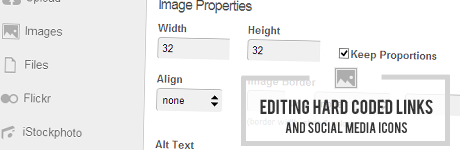
  3. The next screen will display the Image Properties where you can edit the properties for your image including the Alt Text and URL.

Once you’ve updated the image properties click the Save & Insert Image button to update the image properties.

Repeat the process as needed for additional images or icons in your template. Make sure to save your template changes once you’ve finished. Going forward all campaigns created using your template will reflect the updated image properties.

Share this entry
  • Share on Facebook
  • Share on X
  • Share on Pinterest
  • Share on LinkedIn
  • Share on Tumblr
  • Share on Vk
  • Share on Reddit
  • Share by Mail
https://blueprintmediastudios.com/wp-content/uploads/updating-social-media-links.png 519 1243 Tanya Steinberg https://blueprintmediastudios.com/wp-content/uploads/logo-w-partner-badge.png Tanya Steinberg2013-04-04 16:09:082018-10-22 11:42:59Editing Hard Coded Social Media (and other) Links in your Mailchimp Template

Latest News

  • Adding the Mailchimp Required media:content Tag to your WordPress RSS Feed OutputSeptember 28, 2018 - 12:43 pm
  • Connecting Your Site to MailchimpMarch 8, 2018 - 1:59 pm
  • We’re Not Just Mailchimp Experts, but PartnersMarch 2, 2018 - 10:40 pm
  • We’re Off to Atlanta (and Mailchimp HQ!)February 26, 2018 - 8:00 am
  • Template Spotlight: EdoughbleAugust 8, 2017 - 12:38 pm

Prefer to receive updates via email?

Subscribe
View a recent issue | MailChimp Powered by Mailchimp

READY TO PLACE AN ORDER?

Use our convenient online ordering system or give us a call at 888 476 6168 to place your order via telephone.

Our online ordering system is the quick, secure way to place your order and allows your company to get started quickly – even outside normal business hours, on holidays, and during weekends. Once your order is placed you’ll receive immediate download access to key documentation required for your project (if any).

Build your brand with expert insight and recommendations from our MailChimp Partners

direct to your inbox

Sign me up!
View a recent issue | MailChimp Powered by Mailchimp

ABOUT US

About Us
Clients
How We Work

NEED HELP?

Find answers to frequently asked questions and access helpful knowledgebase articles and tutorials via our Help section.

Search Search
Copyright © 2025 Blueprint Media Studios LLC PO Box 7922 Pueblo West, CO 81007-2854. All rights reserved. Policies | Privacy Policy | Cookie Policy | Data Access Request
  • Link to Mail
  • Link to Facebook
  • Link to Instagram
  • Link to LinkedIn
Link to: Uploading your Template ZIP File to Mailchimp Link to: Uploading your Template ZIP File to Mailchimp Uploading your Template ZIP File to Mailchimp Link to: Scalable (Mobile Friendly) versus Responsive Integration Link to: Scalable (Mobile Friendly) versus Responsive Integration Scalable (Mobile Friendly) versus Responsive Integration
Scroll to top Scroll to top Scroll to top